dbt Cloud Sync
This guide walks you through setting up automatic synchronization between your dbt Cloud projects and Colibri. Once configured, Colibri will automatically update whenever your dbt Cloud jobs complete.
Overview
The dbt Cloud integration allows Colibri to automatically:
- Fetch manifest and catalog artifacts when dbt Cloud jobs complete
- Process and visualize your dbt project’s lineage
- Keep your documentation up-to-date with the latest production runs
The integration works in two steps:
- Organization-level: Connect your dbt Cloud account to Colibri
- Project-level: Configure which dbt Cloud jobs should sync to which Colibri projects
Prerequisites
Before you begin, ensure you have:
- dbt Cloud Account: An active dbt Cloud account with at least one project
- Colibri Access: Admin or Owner role in your Colibri organization
- Colibri Project: You have already created a project in Colibri to sync your dbt models
- API Access: Ability to create service tokens and webhooks in dbt Cloud
Part 1: Connect dbt Cloud
This step connects your entire dbt Cloud account to Colibri and only needs to be done once per organization.
Get dbt Cloud Information
You’ll need three pieces of information from dbt Cloud.
- Account ID
- API Base URL
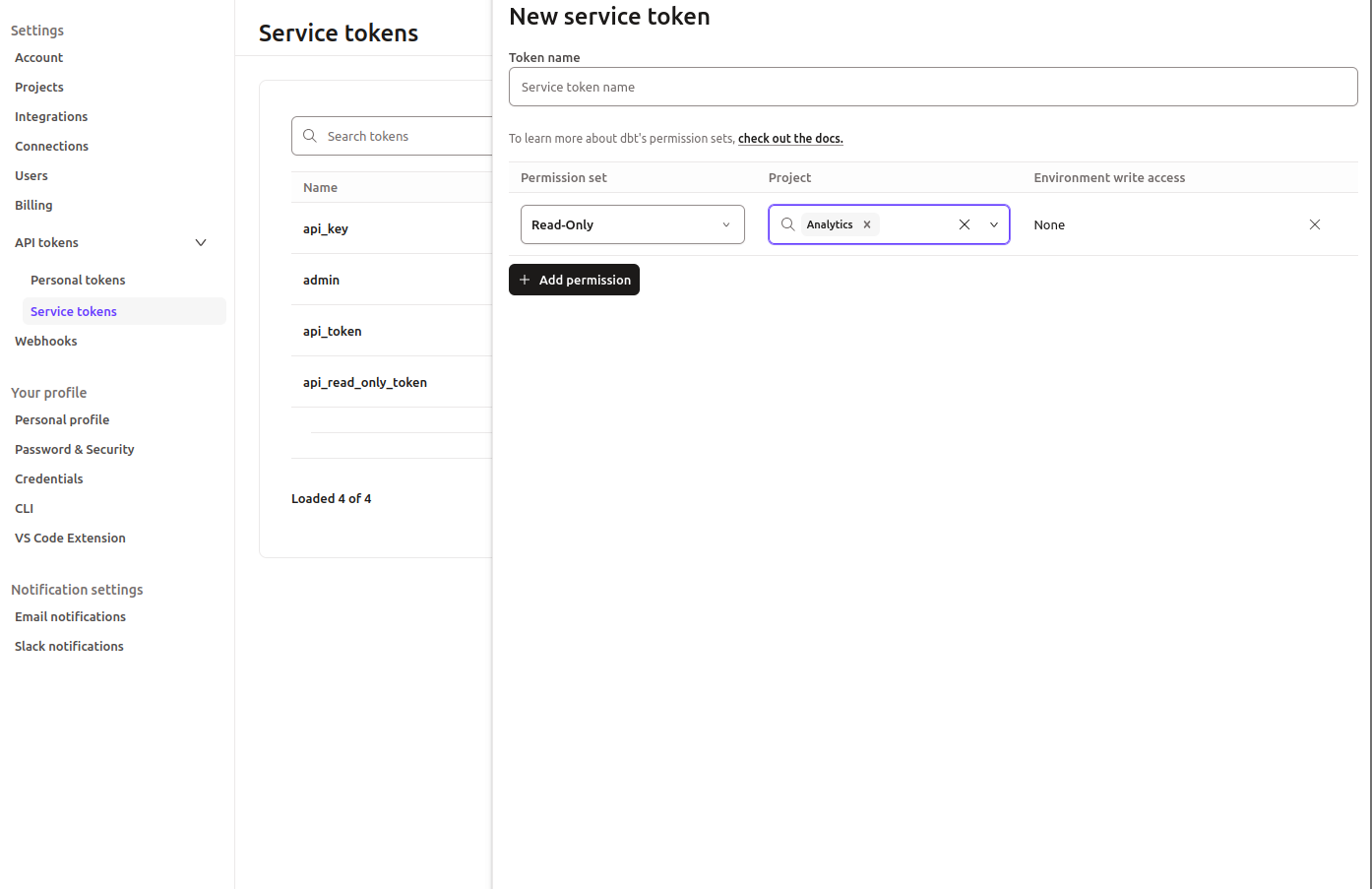
- Service Token
You can find the Account ID and Access URL in the settings (profile>settings>account)
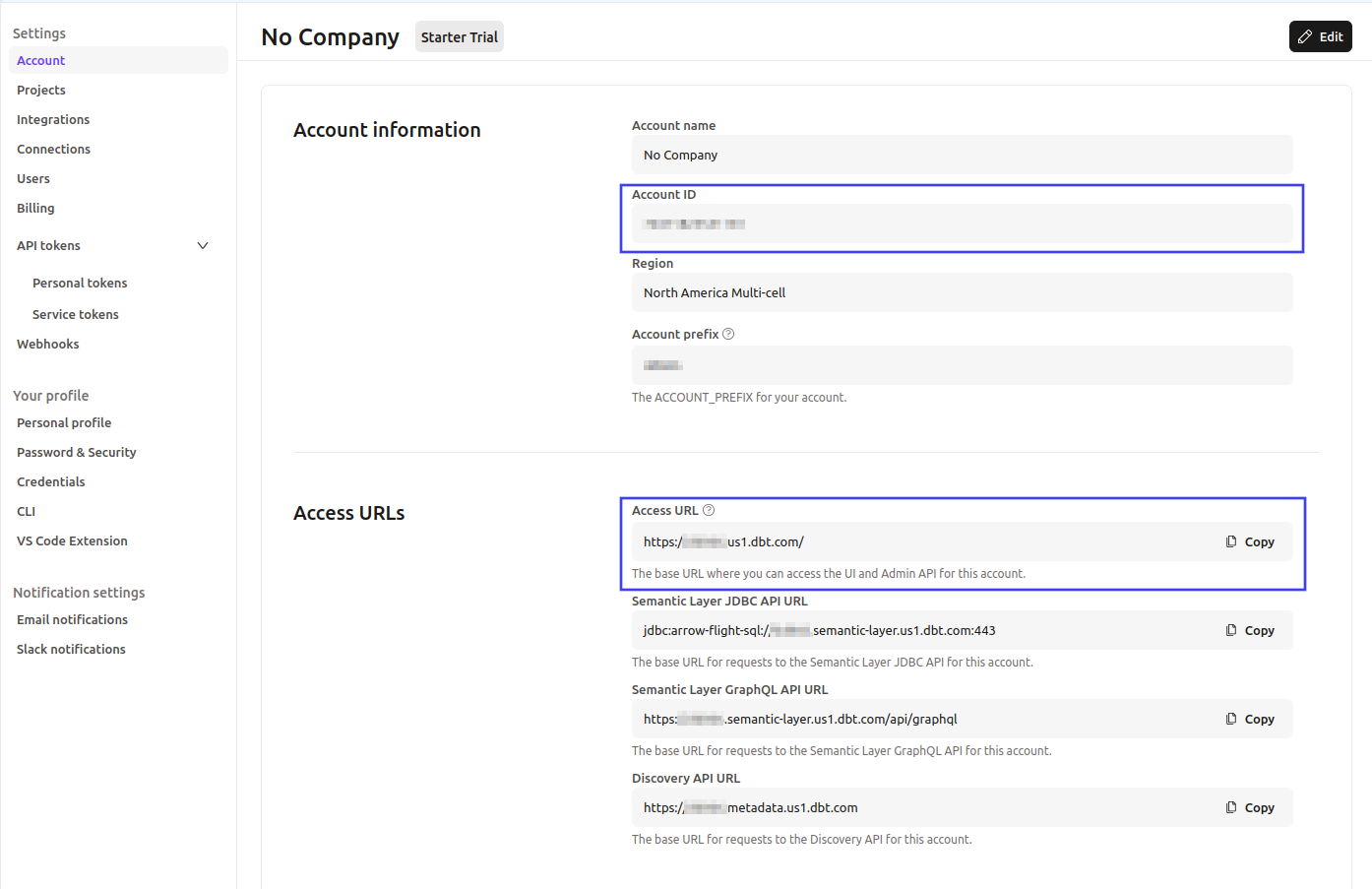
Note that the API Base URL is your access url from settings + /api/v2
For example:
{access_url}/api/v2Depending on your region, it will follow one of the structures below
| Region | API Base URL |
|---|---|
| North America (Multi-tenant) | https://cloud.getdbt.com/api/v2 |
| EMEA | https://emea.dbt.com/api/v2 |
| APAC | https://au.dbt.com/api/v2 |
| North America (Single-tenant) | https://{your-account}.us1.dbt.com/api/v2 |
Create Service Token
- In dbt Cloud, go to Account Settings → API Tokens
- Click Create Service Token
- Give it a name like “Colibri Integration”
- Grant it read permissions (minimum required)
- Copy the token (starts with
dbtc_...)
Configure Connection in Colibri
- In Colibri, navigate to Organization Settings → dbt Cloud
- Enter the information you gathered:
- Account ID: Your numeric dbt Cloud account ID
- API Base URL: Your region-specific API URL
- API Token: The service token you created
- Click Test Connection to verify the credentials work
- If successful, click Continue to Webhook Setup →
Set Up Webhook in dbt Cloud
Webhooks allow dbt Cloud to notify Colibri when jobs complete.
Copy Webhook URL from Colibri
After testing your connection, Colibri will display a Webhook URL. Copy this URL.
Create Webhook in dbt Cloud
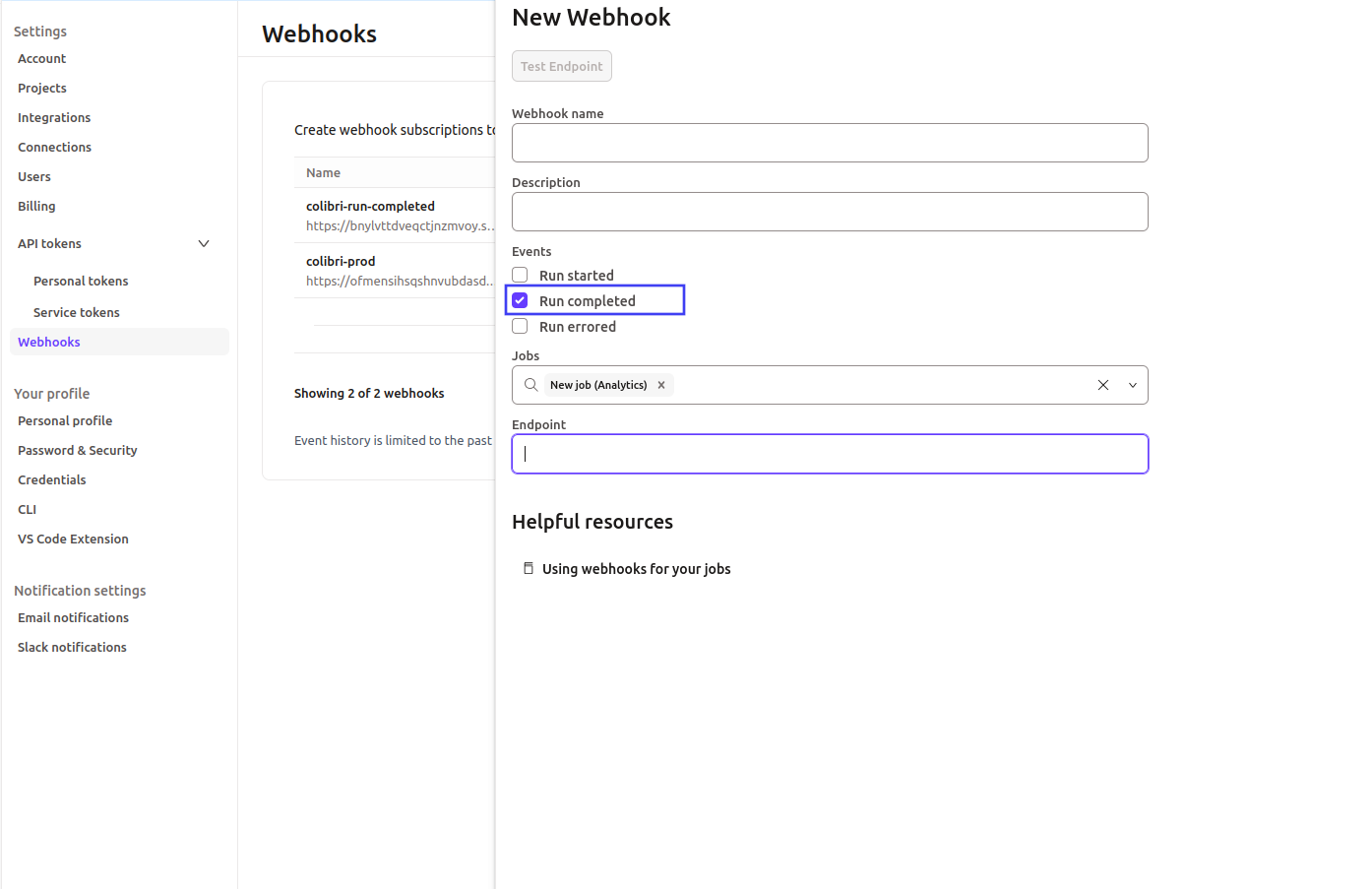
- In dbt Cloud, go to Account Settings → Webhooks
- Click Create Webhook
- Configure the webhook:
- Name: “Colibri Sync”
- Endpoint: Paste the webhook URL from Colibri
- Events: Select
job.run.completed - Jobs: Select the specific jobs you want to trigger syncs (typically your production job)
- Click Save
- Copy the Webhook Secret that dbt Cloud generates
Complete Setup in Colibri
- Return to Colibri
- Paste the Webhook Secret you just copied
- Click Save Connection
Success! Your dbt Cloud account is now connected to Colibri.
Part 2: Configure Project Sync
After connecting dbt Cloud at the organization level, you need to configure which dbt Cloud projects should sync to which Colibri projects. You can do this from Project Settings → dbt Cloud
To validate, run a dbt Cloud job and check that the documentation is updated in Colibri.